Intro and prerequisites
In this blog series I will share my thoughts and learnings with shared mobile devices. I’ve based this post on android since it provides a workflow where the built-in NFC reader can be used for scanning the RFID-chip for authentication. I´ve included Imprivata mobile device access (MDA) for authentication, SSO and secure using switching. The MDM-tool I’ve chosen is Microsoft Intune since most of our customers are using Intune.
Prerequisites:
- Android
- Intune
- Managed home screen (Intune)
- Sign-in enabled in Managed home screen
- Microsoft Authenticator
- Intune company portal
- Imprivata MDA
Shared mobile devices has become very popular since it provides a cost-efficient way for the organization cut costs but remain productive. From the organization’s perspective, they would prefer as many users as possible sharing a single device, which means that the organization needs to buy and maintain considerably less devices. However, when you share devices between multiple users, other issues arise.
- The traceability of which user has used the device at any given time.
- Securing access to the device
- secure user switching – clear the previous user’s session.
- Seamless multifactor authentication.
I meet a lot of customers who are struggling with how to cut costs by having multiple users per device and at the same time want to increase the user satisfaction and productivity, streamline the mobile workflow and improve the user substitution process. It´s usually a perfect storm since the customer often has all these issues all at once, and just not one or the other. I´ve spent a lot of time the last couple of years trying to help customers navigate through the shared mobile device strategy, both with customers that has been using shared devices for years, and for those who are just looking into it.
Imprivata MDA gives you some great advantages and features such as:
- Secure access to the device
- Easy access to the device
- Personal login to the device
- Traceability
- Single sign-on (SSO)
- Secure user switching – by automatically clearing the previous user’s session (cache).
These functionalities are something that your IT department will benefit from. Having the traceability of which user has used the device at any given time, providing a solution that enforces MFA but at the same time gives seamless access to the device and applications with SSO. Imprivata MDA shouldn’t just be seen as a yet another security tool or feature. What it does, is bringing other values to the table. It will free up time for the end users, it will ease their mind with the quick and easy access to the device and enabling SSO to all the various applications used throughout the day, all just by a simple tap with their ID-card. The way it works is that the ID-card is enrolled and tied to the users AD-account. When the user taps the card on the back of the device, the NFC-reader scan the cards UID and is verified through Imprivata to ensure that the card is connected to the correct identity. The user enters their personal pin code and Imprivata validates the pin code, the user’s credentials and status in AD. Upon a successful authentication the user gets access to the device where they can launch an application (Native, web or hybrid) where Imprivata will perform SSO.
Tips and tricks during Implementation
To get the best user experience with the shared mobile device there are typically some fine tunings to do and in this section I will go through the most common areas.
Device Pin code
During the implementation we often have discussions with IT-department and the security department. The reason for this is that there has previously been a way of handling these shared devices, security recommendations and so on, and the device pin is often one of the topics discussed.
Shared mobile devices are typically protected with a pin code, a pin code that everyone knows of, and sometimes the pin code is even written on the back of the device. Essentially the pin code doesn´t provide any security, at least not in this case. With Imprivata you have a personal login to be able to get access to the device, and it´s your AD-credentials used in a password less manner with your ID-card in combination with your personal pin code. Even though this is the case, we sometimes face resistance removing the shared device pin code, since it´s a “security” feature. In fact, it´s only annoying and a confusing extra step for the user, who both must enter the shared pin code and then do a multi factor authentication with Imprivata, to get access to the device.
To give you a bit of background story on why the pin code might still be around, it also comes down to compliance. In previous versions of Android, prior to android 10, the encryption that was used were disk encryption and Android required a pin code because otherwise the encryption key would be “default password”. The MDM-systems followed that lead from Android making it a requirement to have a device pin to be compliant. Nowadays on android 10 and later versions, disk encryption isn’t used anymore, and file-based encryption is the only encryption available, which doesn´t require a pin code.
KIOSK mode
These devices are shared devices are used by multiple people throughout the day. The users have various technical background, and how comfortable they are to interact with technology vary. A way to give them the confidence of using these mobile devices could be the placement of the applications. If they always are in the exact same place every single time, and on any of the devices they use, it both gives them the confidence and saves them time, not having to look for the placement of the application. This could be achieved with a KIOSK-mode such as Intunes Managed home screen, where you can lock the grid layout. What a kiosk-mode also provides, is a way of restricting applications and functions to what is needed for the users to be able to do their work. It ensures that the users will not be able to change settings, download apps, wipe the device and so on. It provides the precise needed functionality and nothing more.
Build in NFC-reader
There are a few android components that are crucial for Imprivata to work and to get the intended workflow. One of them is the NFC-reader that shouldn’t be restricted in any way to be able to use the ID-card or tag to tap´ in. If we use a kiosk-mode that are intended to restrict the device, you might have to pull some tricks out of your sleeve. Specifically, if you use Intunes managed home screen, the NFC-reader is typically not allowed to run in the background. To solve this problem, create an android enterprise application by doing the following:
1) Navigate to “Apps” -> Android -> + Add -> App Type -> Select “Android Enterprise system app” then click Select again.
2)- Fill the following information and select next:
Name: NFC service
Publisher : Google
Package name : com.android.nfc
3) Select the Scope -> Next -> Add assignment groups -> Next -> Review the summary and Click Create.
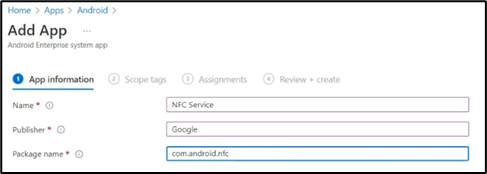
4) publish this application on the managed home screen
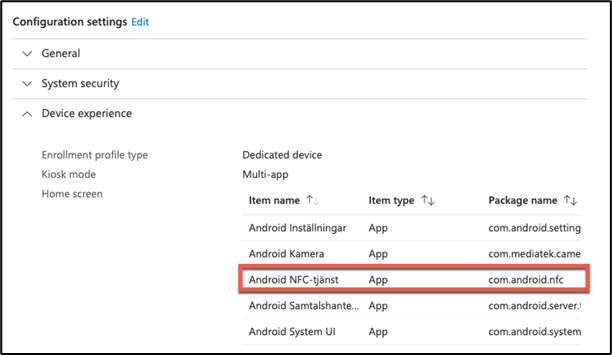
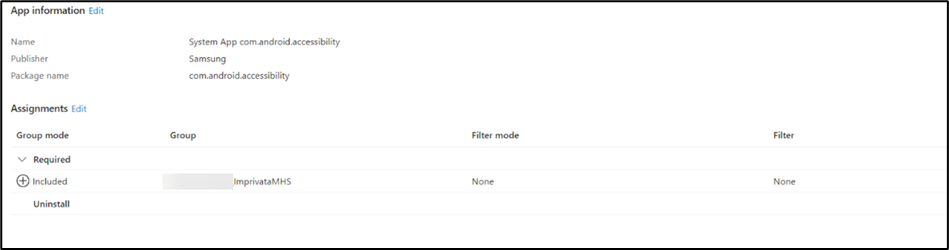
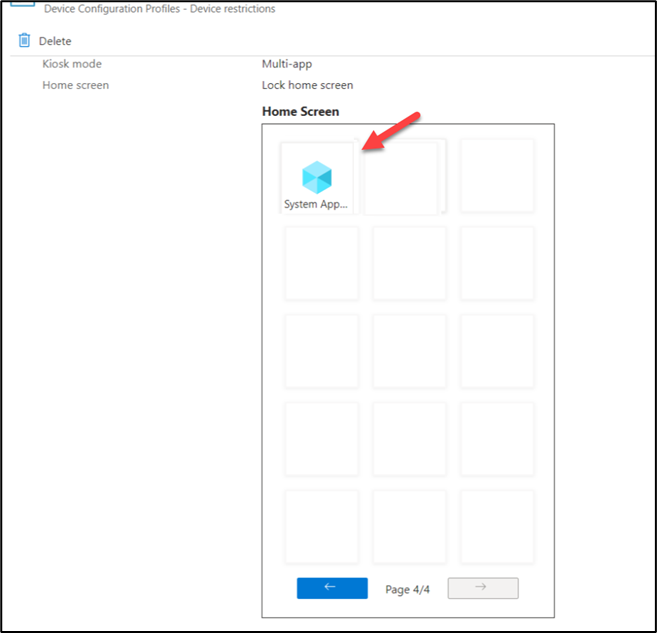
In some cases, on Samsung devices, I’ve seen that you have to allow the accessibility service to run in Multi-app kiosk mode. This is done by the following steps:
1) Navigate to “Apps” -> Android -> + Add -> App Type -> Select “Android Enterprise system app” then click Select again.
2)- Fill the following information and select next:
Name: Samsung accessibility
Publisher : Samsung
Package name : com.samsung.accessibility
3) Select the Scope -> Next -> Add assignment groups -> Next -> Review the summary and Click Create.
4) Publish this application on the managed home screen as well.
MSAL – Microsoft applications
If you have gotten to the point where you are already using shared devices and are using a KIOSK-mode, great. If you are using Microsoft applications or is interested in using Microsoft applications on your shared device, you could optimize the workflow even more.
Prerequisites:• Managed home screen (Intune)
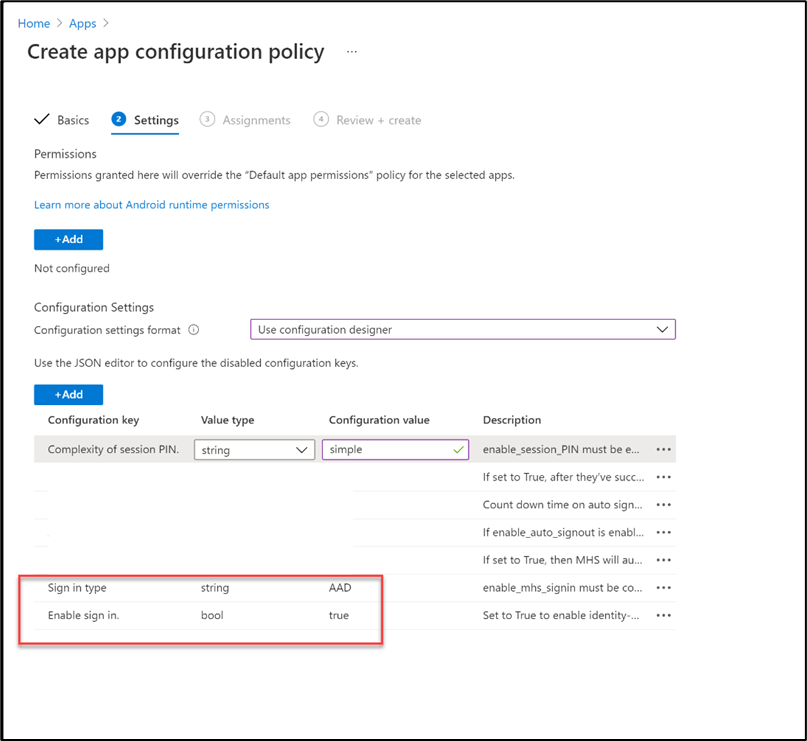
• Sign-in enabled in Managed home screen
• Microsoft Authenticator
• Intune company portal
• Imprivata MDA
Note: Authenticator app needs to be deployed to the device, but it´s not the authenticator as we know it from our personal device. There is no push-notifications or tokens that should be entered. The authenticator app acts like a broker. The Microsoft apps delegates the authentication to the authenticator app, where Imprivata proxy credentials to the authenticator app.
Why MSAL is interesting
The combination of Intunes managed home screen with sign-in enabled and Imprivata MDA on the mobile device, will give your users instant access to all Microsoft applications after the initial authentication.
Workflow:
1)User authenticates on the device with Imprivata MDA (RFID chip based card + Personal PIN on the builtd in NFC reader of the device.)
2)The device is unlocked and managed home screen is prompting for a Microsoft authentication.
3)Imprivata performs SSO, and the various button clicks that the user normally needs to do.
4)This authentication gives the user the golden ticket – The MSAL-token
5)User launches any of the Microsoft applications, such as Teams and outlook.
6)The user is already authenticated in these applications since the authentication was already done on the initial tap in.
Summary
To summarize my thoughts on shared devices and Imprivata MDA – It is a great tool to unleash the full potential of mobility if it´s implemented properly. It will increase your security posture, by giving your mobile devices an extra security layer. It will provide seamless multifactor authentication, SSO to both native and web applications, secure and fast user switching and last but not least the ease of use for your end users essentially giving them more time for what they are hired to do.
You should always start with the analysis and having non-technical conversation with the end users to get insight how they are working and what their workflow is, what works well and what doesn’t-where can we optimize? The insight from these discussions translates into a solution design that will improve their workflow.
You will most likely meet obstacles both with internal politics and technology such as the device pin – to be or not to be, NFC-readers, clear cache and so on. But when you have overcome these obstacles, you will have a pretty cool solution that I know firsthand the end users will love to work with.
Shared devices are here to stay, better make the most of it!
Leave a Reply