Intro
All organizations have multiple privileged accounts across the enterprise, such as domain admin, local admin, and service accounts, all with special permissions. These types of accounts, as the name suggests, provide access to information and privileges that, without the correct authority, should not be accessible. The rights associated with these accounts allow the creation of new privileged accounts that can operate in the shadows, change passwords of existing accounts, effectively locking users out, and delete or destroy information and data, placing the organization in a precarious situation. Therefore, if these accounts are exposed, it poses a significant security risk.
All organizations should have routines and processes on how to protect their privileged accounts, because essentially protecting these accounts is the equivalent of protecting your most valuable resources, they are the keys to your kingdom. If these “keys” get in the wrong hands it could result in a huge security breach. With all the work that comes with it investigating and restoring, bad publicity, potential fines, and even loss of data that can set you back for weeks, months or even indefinitely, a security breach is something you want to avoid at all costs.
Protecting your privileged accounts is often overlooked since the process of protecting them is to comprehensive and cumbersome. The general idea is that it will require a lot of investments both in resources and expensive software, but does it need to be?
When I meet customers, I often ask how do you handle your privileged accounts? The answer I often get is either “we use a password manager for our admin accounts” or” Our own accounts is and admin account”
Using a password manager is great for generating passwords and manage your passwords, but you can still copy the credentials and save them in an unsafe manner e.g. saving them to a text file for convenience.
You should also take into consideration, how are the users getting access to the password manager. Username + password+MFA, or just like in most cases just username and password. That means you are only protecting the vault to all of your accounts with just a password.Another issue when you share admin accounts between employees, you lose traceability of who is using that account, and who is doing what at any given time.
A common issue I often see is when a co-worker’s personal account has admin privileges because they are an administrator. From a business perspective, this might make sense as it aligns with the user’s role and is convenient for the user. However, this means that the account is always privileged, 24/7, and often only protected by a password.
This poses a significant risk. If these accounts are compromised, or if an employee is terminated and decides to cause damage before leaving, it can be challenging to protect against or even investigate the source of the problem.
It is crucial to avoid using personal admin accounts due to these risks. Instead, consider implementing temporary admin access that can be granted as needed, with additional layers of security to protect these privileges.
How can we approach this without spending the entire IT-budget or interfering with our IT-employees already busy calendar and lack of time? In my opinion you should look at a PAM-system. In this blog I will give you walk through of a PAM-system, Imprivata Priviliged Access Management, that has a great feature set, easy to implement, easy to use, and without spending the entire budget.
Imprivata Priviliged Access Management (IPAM)
I´ve based this article on a solution Imprivata, and if you´re not familiar with Imprivata, they are a healthcare technology company specializing in secure access and identity management solutions. Their focus is on streamlining and securing access to healthcare systems and applications for clinicians. Imprivata provides solutions like single sign-on (SSO), authentication management, and identity governance to improve workflow efficiency and enhance security. Their products help organizations comply with regulations, protect sensitive information, and ensure that the right users have the right access at the right time. In recent years, Imprivata has expanded their portfolio with a PAM-solution and has become one of the major vendors in that area. Imprivata offers a Privileged Access Management (IPAM) solution, which helps secure, manage, and monitor privileged accounts and access, further enhancing the security of critical systems and sensitive data.
Theres a few reasons why I like this PAM-solution.
- Agent less
- Easy to implement in incremental steps – not a big bang implementation
- Non-intrusive
- Easy to use
- Great feature set
Implementation
Imprivata IPAM comes with a lot of different features, and therefore I’ve selected a few of them that in my opinion are key components for taking control of your privileged accounts and giving you a foundation to build on.
This is my recommendation where you should get started and focus initially. This will give you a great baseline to secure your privileged accounts, giving you the tools for auditing and helping address item 9 in the NIS2 regulation.
Federated sign-in
IPAM comes with a federated sign-in module that gives you the ability to integrate with Active directory or Entra ID, and a combination is possible as well. It would always be my recommendation to use federation that gives you an extra layer of security since you have a better control over these accounts. If you would use Entra ID you automatically get MFA and according to your conditional access policies, prompted for MDA for example if you are outside of the corporate network. The solution is not restricted to use Microsoft as a MFA provider, you can choose a provider of preference. Adding MFA will address item 10 in the NIS2 regulation.
Orchestrate access
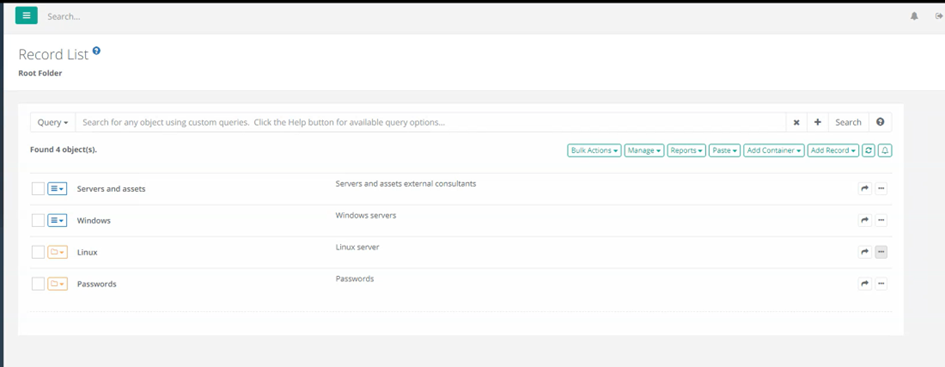
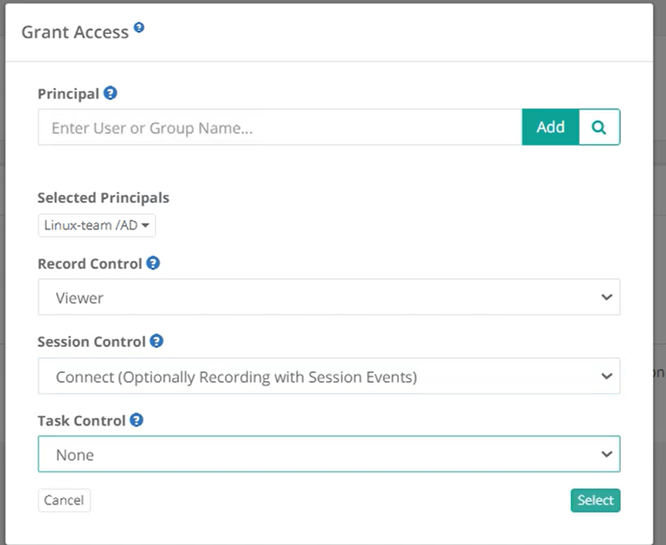
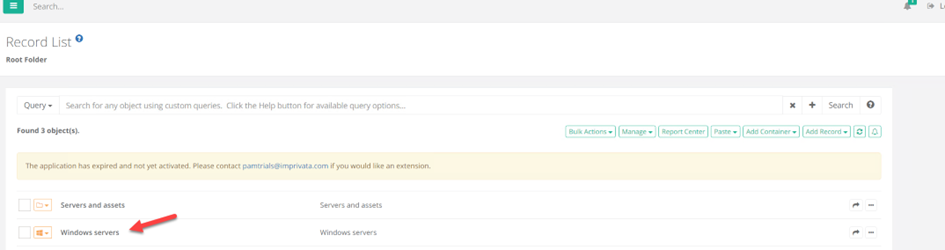
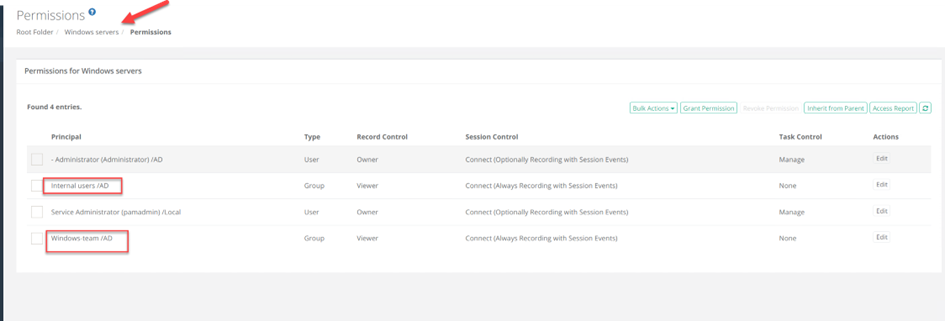
Organizing your resources in folders isn’t just a neat way to keep track of where your resources are, but it gives you the ability apply workflows, session control, tasks, and the ability to orchestrate access to which users or groups that have access to certain resources, on a folder level, and all of the above will be inherited to all of the resources in that folder. Since we have integration to AD or Entra ID, or even both, we can assign permissions on a group level. When you add a new resource into that folder, all the settings mentioned above is inherited and applied to that resource.
Request & Approval flows
In addition to orchestrate who has access, the next step would be to control when they have access, for how long and if someone needs to approve the request.
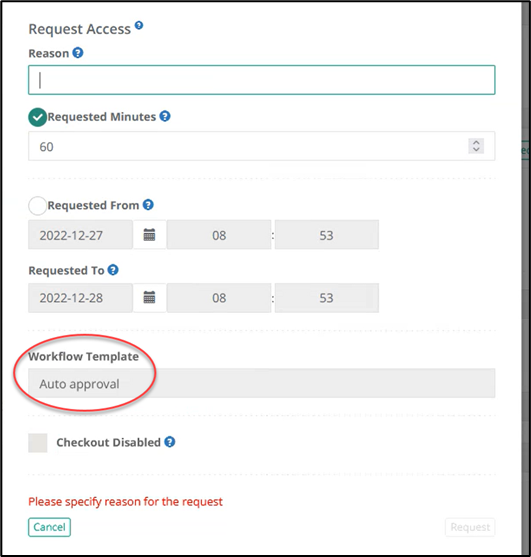
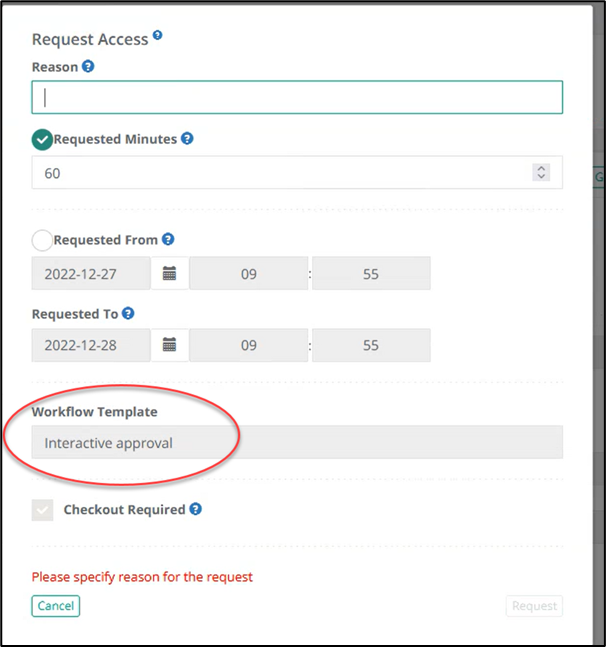
The way it works is that the user request access to a resource (record), specifies the reason for the request, and for how long they need access to the resource.
The approval of the request could be setup on various ways with different conditions depending on the type of resources, users or the actual time of the day. Typically, we don´t want to interfere with the users, making them wait on their request being accepted, so we use auto-approval for internal users during business hours. However, if it´s outside of business hours, or if it´s an external consultant we might want to have someone to approve the request. It is also possible to have four eyes setup. This is useful if it´s a really sensitive resource, or if the request is made on an unusual time, it might be a good idea if multiple people can verify that this request is okey to approve.
Reference records /shadow accounts
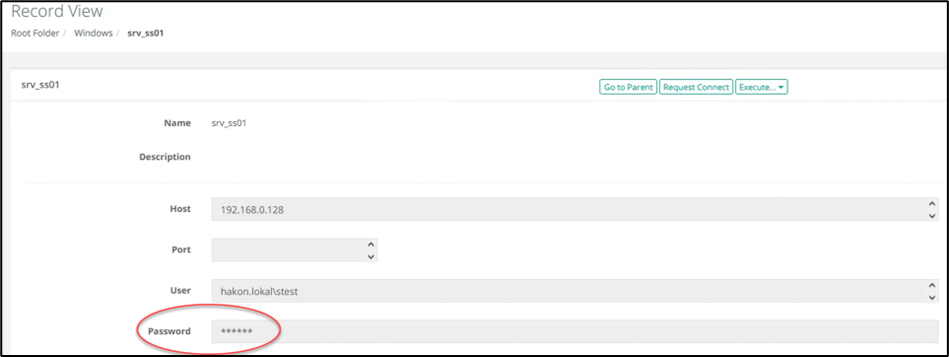
When you implement a PAM-system you obviously want your employees to use the system and access the resources via that system, otherwise the point is kind of mute. A way of ensuring that your resources are accessed via the PAM-system where you have all the controls and auditing, is to use reference records.
What a reference record is just an account that you put in a vault, which you then can predefine a resource (record) with to use this specific account. This could then be configured so that the employee cannot see or copy the password and therefore not use the account outside of the PAM-system.
Tasks
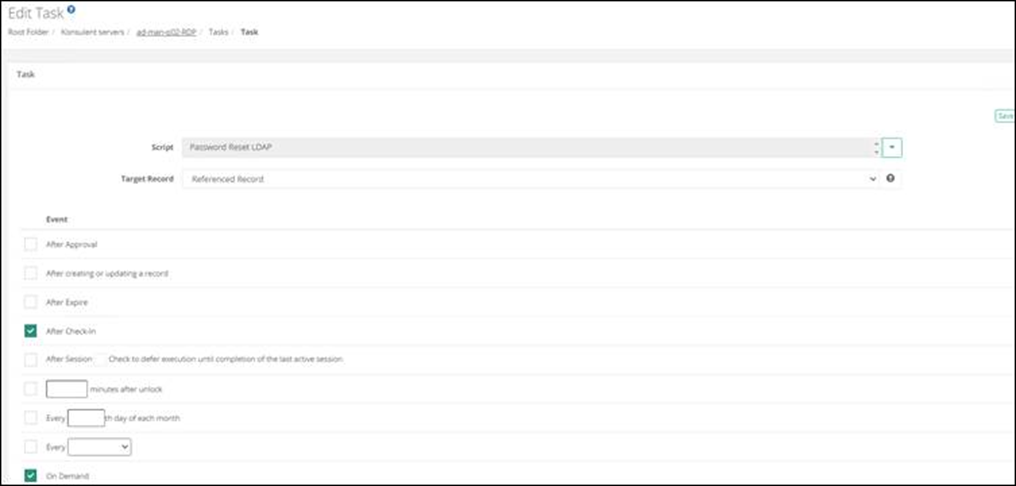
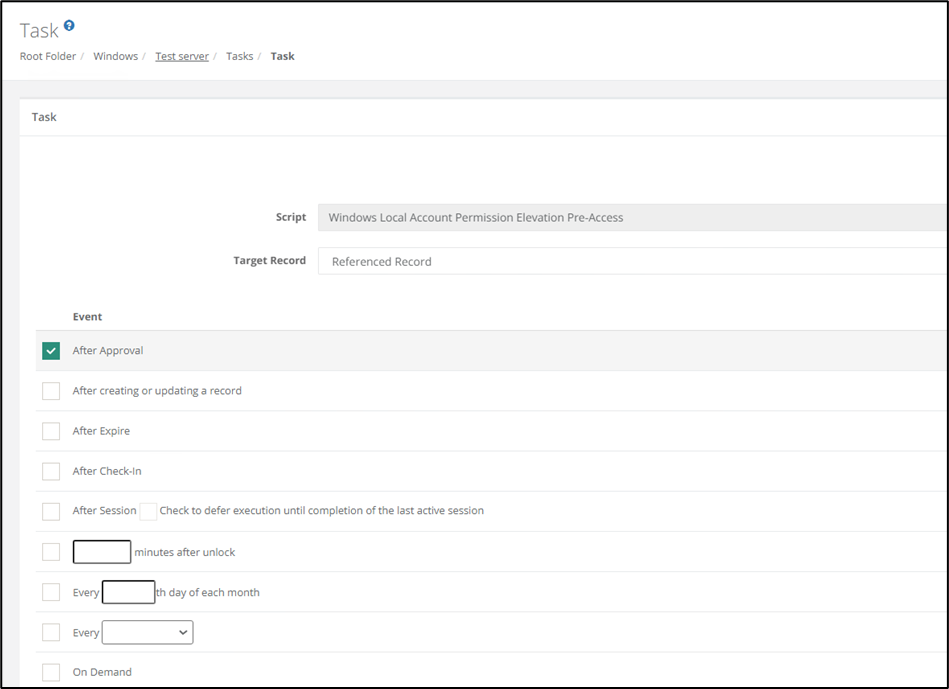
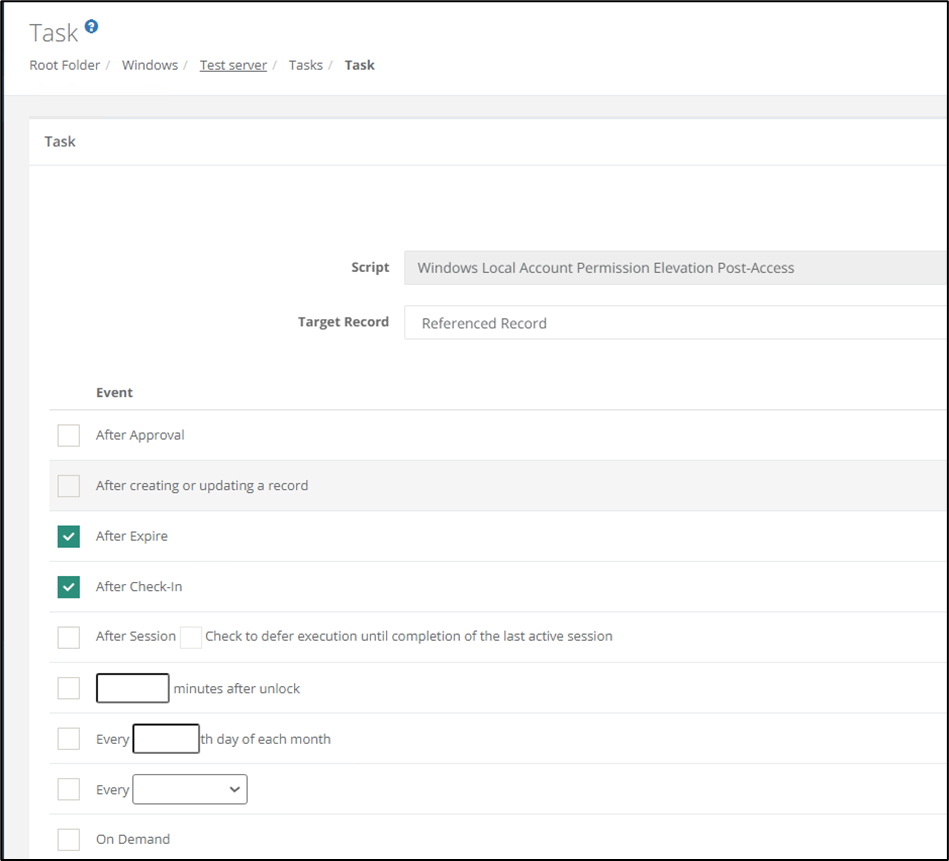
Tasks is a built-in feature in Imprivata PAM that basically is scripts that you can use on various event triggers. It comes with a lot of scripts out of the box, but you edit them to your needs, and you can make your own.
What is the use case of these tasks then?
- Password rotation
- Discover non-intended privileged accounts
- Clean up non-intended privileged accounts
- And so on
This is a great feature that you could enhance my previous recommendation of using reference record. Apply a password rotation policy on this reference record, meaning that no one, not even the admin that put the account in the vault could use the account outside of the PAM-system.
Another great use case is Just in time access (JIT). I previously mentioned that in the request and approval flows you can specify for how long you got access. Imagine enhancing that even a bit more with that service account that is used as a reference record, not having any privileges at all until you actually need it, and when you´re done, all of the privileges is removed again.
Summery
To summarize my thoughts on privileged accounts and a PAM-solution, I would choose the approach – Rather be safe than sorry. We know that all organizations have multiple privileged accounts across the enterprise to make the IT-infrastructure work. We also know that if these privileged accounts are used in an unsafe manner, abused or exposed, it poses a huge risk for the entire organization. Even though these are facts, I often see that the privileged accounts are still not protected properly. If its due to ignorance, or the assumption that protecting the accounts with proper routines and a system is far to comprehensive and expensive, that it just can´t be done, I’ll leave that for you to decide. Imprivatas PAM-solution is a system that has a great feature set helping you securing your privileged accounts. It gives the possibility to orchestrate who has access, when they have access and for how long (Just in time). It gives you the possibility to implement federated sign-in, MFA and audit and monitor all the sessions. The best part is, even if the solution comes with a great feature set, it is easy to implement and easy to use, without spending the entire IT-budget on one solution. Be proactive – rather safe that sorry.
Leave a Reply